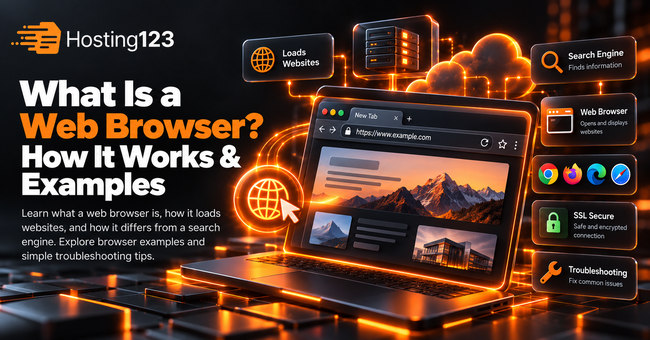
A web browser is an application that opens and displays websites. It turns website code into readable pages with text, images, and interactive features. Chrome, Firefox, Safari, and Edge are common examples. In this Hosting123 guide, you’ll learn how browsers work. You’ll also discover how they differ from search engines.
Planning your own website? First, choose an address through Hosting123’s domain search. Then, connect that domain to your hosting service. Hosting serves your website’s content. Meanwhile, your visitor’s browser turns that content into a usable page.
What Is the Difference Between a Browser and a Search Engine?
A browser displays websites, while a search engine helps you find them. For example, Chrome is a browser. Google Search is a search engine. You can access Google Search through Chrome, Firefox, or Safari. Therefore, you can change browsers without changing your preferred search engine.
The confusion often starts with the address bar. Most browsers accept both website addresses and search phrases there.
For example, enter example.com to visit that address directly. Alternatively, enter “business website ideas” to search for relevant pages.
| Term | Main purpose | Example |
|---|---|---|
| Web browser | Opens and displays web pages | Chrome, Firefox, Safari |
| Search engine | Finds pages matching a query | Google Search, Bing |
| Website | Provides a collection of connected pages | A company website |
| Domain name | Gives a website a readable address | example.com |
| Web hosting | Provides resources to store and serve website content | A website hosting account |
In other words, a search engine helps with discovery. A browser lets you visit and use the pages you find.
How Does a Web Browser Work?
A browser requests website content and builds a page from the response. First, it locates the relevant server. Next, it retrieves the necessary resources. Finally, it processes those resources and displays the page. This process connects the website’s infrastructure with the screen in front of you.
Here is a simplified version of a typical visit:
- You enter a URL. This address identifies the resource you want.
- The browser resolves the domain. DNS helps locate an appropriate server address.
- The browser establishes a connection. HTTPS adds encryption and certificate checks.
- The server receives a request. It returns content or another response.
- The browser builds the page. It processes code, images, and other resources.
However, browsers can reuse some previously stored information. Therefore, every visit does not require identical steps or downloads.
What Do HTML, CSS, and JavaScript Do?
These technologies handle different parts of a web page:
- HTML provides the content and structure.
- CSS controls colours, spacing, and layout.
- JavaScript adds interactive behaviour.
For example, HTML creates a contact form’s fields. CSS styles those fields. Meanwhile, JavaScript can check entries before submission.
As you interact, the browser may request additional content. For instance, scrolling might trigger more images to load.
What Are Common Examples of Web Browsers?
Common web browsers include Chrome, Firefox, Safari, Edge, and Opera. Each lets you open pages and follow links. They also support everyday activities, including shopping and using online forms. However, device support and available features vary. Choose a compatible browser that supports your regular tasks and receives updates.
Consider these questions before choosing:
- Does it support your device?
- Does it work with your essential websites?
- Can you manage privacy settings easily?
- Does it support the extensions you need?
- Do you want bookmarks across multiple devices?
Also, you can install more than one compatible browser. A second browser helps when troubleshooting website problems.
What Is a Browser on a Phone?
A mobile browser opens websites on a phone or tablet. It performs the same basic role as a desktop browser. However, its interface suits smaller screens and touch controls. Examples include Safari, Chrome, Firefox, and Samsung Internet. Availability depends on your device and operating system.
For example, a mobile browser lets you read articles or complete purchases. You can also access services without installing their separate apps.
However, websites must support smaller screens properly. The browser cannot automatically fix every layout problem.
Therefore, website owners should test menus, forms, and buttons on actual phones.
What Information Does a Browser Store?
Browsers can store history, cached files, cookies, and other site data. These serve different purposes. For example, history helps you revisit pages. Cached files can reduce repeat downloads. Meanwhile, site data can preserve preferences or sign-in sessions. Understanding these differences helps you choose what to clear during troubleshooting.
Browsing History
History records pages you visit during ordinary browsing.
For example, you can use it to reopen yesterday’s article. However, deleting local history does not erase records held elsewhere.
Browser Cache
The cache stores reusable website resources.
For instance, your browser may keep a website’s logo for later visits. As a result, it may avoid downloading that image again.
However, an outdated cached resource can sometimes cause display problems.
Cookies and Other Site Data
Websites use cookies and other storage mechanisms for different features.
For example, they can remember preferences or support account sessions. Some also help shopping carts work across page visits.
However, clearing site data may sign you out. Therefore, check the selected options before deleting anything.
If one website has problems, start with that website’s data.
Does Private Browsing Make You Anonymous?
Private browsing does not make you anonymous online. Instead, it limits certain information your browser retains after the session ends. Websites and network operators may still observe aspects of your activity. Also, downloaded files and saved bookmarks can remain. Therefore, treat private browsing as a local privacy feature.
For example, a private window can open a separate website session. It can also help investigate problems involving existing site data.
However, private browsing does not reproduce every visitor’s experience. Your device, connection, and browser settings still influence the result.
Why Does a Website Work in One Browser but Fail in Another?
Different browser settings, stored data, extensions, or compatibility issues can affect a website. For example, an extension might block a necessary script. Alternatively, outdated site data might disrupt a form. Comparing browsers helps narrow the investigation. However, one successful test does not reveal the exact cause.
Try these steps in order:
- First, check the address. Confirm that you opened the correct URL.
- Next, reload the page. Check whether the problem continues.
- Update your browser. Then, reopen the affected page.
- Try a private window. Compare it with your normal session.
- Check your extensions. Temporarily disable those that might affect the page.
- Clear the affected site’s data. Remember that this may sign you out.
- Try another browser. If necessary, compare another device or network.
For example, a form might work only in a private window. Existing site data or extensions could explain the difference.
Therefore, investigate those possibilities before changing your website’s hosting configuration.
If several browsers fail, broaden your checks. The website, server, DNS, or network may need attention.
What Should Website Owners Test Across Browsers?
Website owners should test important tasks across browsers and screen sizes. First, check whether visitors can navigate and read comfortably. Then, test forms, accounts, and purchases. Also, inspect error messages and confirmations. A homepage can look correct while another feature prevents visitors from completing their tasks.
Use this checklist before publishing:
| Area | What to check |
|---|---|
| Navigation | Menus open, and links reach the correct pages |
| Text | Content remains readable on smaller screens |
| Forms | Fields, validation, and confirmations work |
| Images | Pictures fit their containers |
| Accounts | Sign-in and sign-out work correctly |
| Checkout | Customers can complete a test purchase |
| HTTPS | Pages load without certificate warnings |
Also, test with an actual phone. Desktop preview tools help, but they cannot reproduce every mobile condition.
Finally, check website performance. Hosting, images, scripts, networks, and visitor devices all influence loading speed.
Therefore, changing browsers cannot solve every slow website.
How Can You Make Your Website Accessible Through a Browser?
A typical public website needs content, hosting, and a domain name. First, prepare the website and configure its hosting. Then, connect the domain through DNS and enable HTTPS. Finally, test the public address in several browsers. Search visibility comes separately; visitors can use the address directly.
Start with the pages your audience needs most. For example, a business website might need services, contact information, and an enquiry form.
Next, test those pages from a visitor’s perspective. Can someone understand your offer and contact you easily?
Ready to choose an address? Search available domain names with Hosting123 and find one that suits your project.
Frequently Asked Questions
Is Google a Web Browser?
Google Search is a search engine. However, Google Chrome is a web browser. You can use Google Search through Chrome or another compatible browser.
Can I Use Multiple Browsers on One Device?
Yes. You can install several compatible browsers on one device. However, each browser may keep separate settings, history, and sign-in sessions.
Do I Need a Search Engine to Open a Website?
No. You can enter the website’s address directly into your browser. Alternatively, open the website through a bookmark or follow a link.
Is a Browser the Same as the Internet?
No. The internet connects devices and online services. Meanwhile, a browser helps you access websites through that network.
Does Clearing the Cache Delete Saved Passwords?
Clearing only cached files generally preserves saved passwords. However, browsers provide separate options for deleting passwords and other data. Therefore, review your selections before confirming the deletion.
Do Visitors Need the Browser I Used to Build My Website?
No. Your website should support the browsers your audience uses. Therefore, test its important pages and features across several browsers before launch.
Can I Open a Website Before Google Lists It?
Yes. Visitors can open a working public website through its address. However, search engines must discover and index the website separately.