
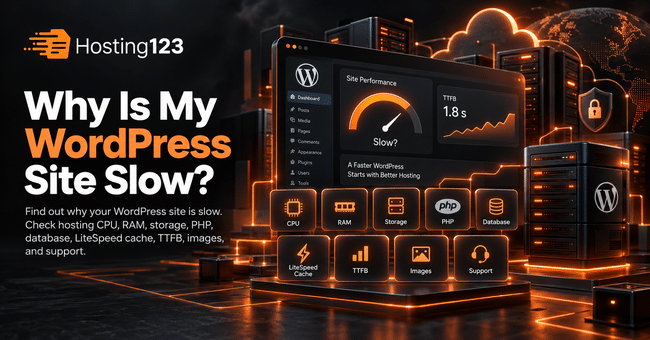
slow WordPress site often points to hosting limits, weak server resources, poor caching, outdated PHP, overloaded databases, or missing LiteSpeed optimization. Hosting123 recommends testing hosting speed, TTFB, PHP version, storage type, cache setup, and support quality before you change themes or remove plugins.
Quick Answer: Why Is My WordPress Site Slow?
Your WordPress site may run slowly because the hosting plan lacks enough CPU, RAM, disk speed, cache support, or database performance.
However, plugins and themes do not cause every speed issue. Sometimes the server itself creates the bottleneck.
Therefore, start with hosting checks before you rebuild the whole website.
WordPress Speed and Hosting: What Matters Most?
WordPress needs more than basic storage.
It also needs stable CPU, enough RAM, fast disk, updated PHP, clean database access, and strong cache support.
In addition, WooCommerce, page builders, security plugins, and backup tools increase server load.
So, if your website grows but your hosting stays the same, speed problems can appear.
9 Hosting-Related Reasons Your WordPress Site Is Slow
Use this table as a quick diagnostic checklist.
| Reason | What it means | What to check |
|---|---|---|
| Weak CPU | Server processes requests slowly | CPU limits and usage |
| Low RAM | WordPress struggles under load | Memory usage |
| Slow storage | Files and database respond slowly | SSD or NVMe storage |
| Old PHP version | WordPress runs less efficiently | PHP version |
| No server cache | Pages load from scratch too often | LiteSpeed or cache support |
| Database overload | Queries take too long | Database size and plugins |
| High traffic spikes | Server cannot handle demand | Traffic and resource limits |
| Poor image handling | Media slows pages | WebP and optimization |
| Weak support | Problems stay unresolved | Response speed and expertise |
This table helps you find the real issue faster. Also, it prevents random plugin changes that may not solve the problem.
1. Your Hosting Plan Has Weak CPU Resources
WordPress uses CPU every time it processes PHP, loads plugins, runs queries, or builds pages.
A small site may work well on a basic plan. However, a heavier WordPress site needs more processing power.
For example, WooCommerce, Elementor, multilingual plugins, and security scanners can increase CPU usage.
Check your hosting panel for CPU warnings. Then compare those warnings with slow loading times.
If CPU usage stays high, your hosting plan may limit performance.
2. Your Website Does Not Have Enough RAM
RAM helps WordPress handle active processes.
When RAM stays low, the site may load slowly. In some cases, the admin panel also becomes heavy.
This issue often appears when you run many plugins or process many users at the same time.
Additionally, backup plugins and security scans can use memory during busy periods.
So, review RAM usage before you blame only the theme.
3. Your Server Uses Slow Storage
Storage speed affects files, uploads, cache files, and database activity.
Traditional disks can slow down WordPress during busy moments. On the other hand, SSD or NVMe storage can improve read and write performance.
This matters especially for WooCommerce stores, blogs with many images, and membership websites.
Therefore, check whether your hosting plan uses SSD or NVMe storage.
4. Your PHP Version Is Outdated
WordPress depends on PHP.
Newer PHP versions usually bring better performance, stronger security, and better compatibility.
However, some old plugins may block updates. Because of that, many websites stay on outdated PHP versions for too long.
Check your current PHP version in your hosting panel. Then test plugin compatibility before upgrading.
As a result, you can improve speed without changing your whole website.
5. Your Hosting Does Not Support LiteSpeed Cache
Cache helps WordPress serve pages faster.
Without proper server-level cache, WordPress may rebuild pages too often. That wastes CPU and slows users down.
LiteSpeed hosting can work especially well with the LiteSpeed Cache plugin.
However, plugin installation alone does not guarantee speed. You also need proper server support and correct cache settings.
For WordPress-focused performance, review Hosting123’s WordPress Hosting plans.
6. Your Database Has Become Too Heavy
WordPress stores posts, pages, settings, users, orders, comments, and plugin data in the database.
Over time, this database can become messy.
For example, old revisions, expired transients, abandoned plugin tables, and WooCommerce data can slow queries.
Therefore, check database size and cleanup options.
Also, avoid deleting tables manually unless you know what they do. A wrong deletion can break the site.
7. Your Hosting Plan Cannot Handle Traffic Spikes
A website may load fast with 10 visitors but slow down with 100 visitors.
Traffic spikes put pressure on CPU, RAM, database, and cache.
This problem often appears during campaigns, ads, social media posts, and seasonal sales.
So, test speed during busy hours, not only when traffic stays low.
If your hosting slows down under normal growth, consider a stronger WordPress hosting plan.
8. Your Images and Media Put Pressure on Hosting
Images can slow WordPress heavily.
Large images use disk space, bandwidth, and browser loading time. In addition, unoptimized media can increase backup size.
Compress images before upload. Also, use WebP where possible.
However, hosting still matters. A weak server may struggle when many visitors request image-heavy pages at the same time.
9. Your Hosting Support Does Not Solve Speed Problems
Good support can save hours.
When support only says “disable plugins,” you may not find the real issue.
Instead, a helpful hosting team should check CPU, RAM, PHP version, cache, errors, database load, and server logs.
Before renewal, review past support tickets. Then ask whether the provider can help with WordPress performance.
If support stays weak, migration may make more sense.
WordPress Hosting Speed Checklist
Use this checklist before changing hosting providers.
- Test homepage speed.
- Check TTFB.
- Review CPU usage.
- Review RAM usage.
- Check PHP version.
- Confirm SSD or NVMe storage.
- Test LiteSpeed Cache settings.
- Clean unnecessary plugin data.
- Compress large images.
- Review database size.
- Test speed during traffic peaks.
- Ask support for a server-level speed review.
This checklist gives you a practical process. Moreover, it helps you separate hosting problems from theme or plugin problems.
LiteSpeed Test: What Should You Measure?
A LiteSpeed test should measure more than one score.
Many users look only at page speed grade. However, TTFB, load time, cache status, and real mobile performance matter more.
Check these values:
| Test item | Why it matters |
|---|---|
| TTFB | Shows how fast the server responds |
| Fully loaded time | Shows total page loading speed |
| Cache status | Confirms whether cache works |
| Mobile speed | Shows real user experience |
| Homepage result | Shows general performance |
| Product or service page result | Shows money-page performance |
Run the same test several times. Also, use the same location each time.
This gives you cleaner data.
Should You Move Your Slow WordPress Site?
Do not move your website after one slow test.
First, optimize images, cache, plugins, database, and PHP version. Then check server resource limits.
However, if your hosting still slows down your site, migration can help.
Hosting123’s free website migration service can help you move your WordPress site with a safer plan.
You can also compare Hosting123’s web hosting plans if you need a general hosting solution.
Final Decision: Is Hosting Making Your WordPress Site Slow?
Hosting may cause slow WordPress performance when CPU, RAM, storage, PHP, cache, database, or support quality cannot match your website needs.
So, do not guess. Test your site, check server usage, and review LiteSpeed cache results.
Finally, choose a hosting plan that gives your WordPress site enough room to grow.
Frequently Asked Questions
Why is my WordPress site slow even with few plugins?
Your hosting may lack enough CPU, RAM, cache support, or fast storage. Also, outdated PHP and database issues can slow WordPress even with few plugins.
Can hosting make WordPress faster?
Yes. Better WordPress hosting can improve server response time, cache performance, database handling, and traffic stability.
What should I test before switching hosting?
Test TTFB, page load time, CPU usage, RAM usage, PHP version, cache status, database size, and support response quality.
Does LiteSpeed help WordPress speed?
Yes. LiteSpeed can help WordPress load faster when the server supports it and you configure LiteSpeed Cache correctly.